



Booking Appointments
Ready to book your Red Light Therapy or Child Watch session at the Alfond Youth & Community Center (AYCC)? Follow the simple steps below to log in, select your appointment, and reserve your time.
Contact
Welcome Center | 207-873-0684 | info@clubaycc.org ↗
Book Your Red Light Booth Appointment Online
Book Your Appointment From the Website
- Since you’re on our website already, click the blue Login button at the top right of the webpage. www.clubaycc.org ↗ Or, simply visit our Member Database, Daxko ↗.
- Once you’re on Daxko, click the Login button in the upper right hand corner of the page.
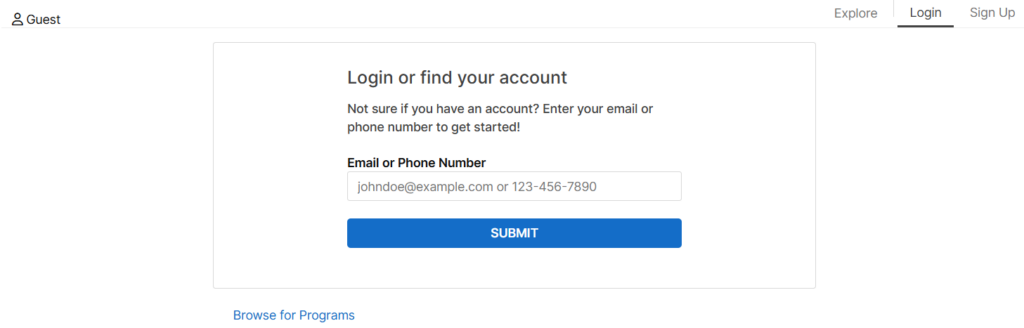
3. Login to your account by providing your email and password associated with your account.
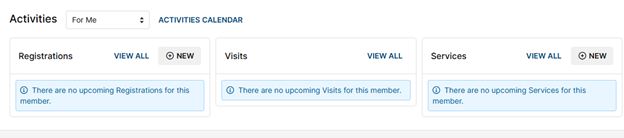
4. Under the Services tab, click New.
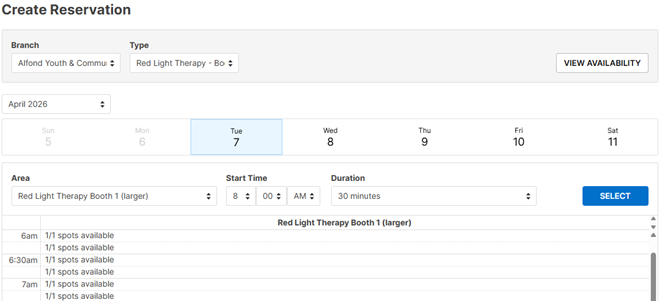
5. Choose the Type of service you would like to register for, and click View Availability.
6. The next screen will show the available appointments on a calendar.
-
- First choose your date.
- Scroll down within the appointment calendar and click an available session with spots available.
- Click Select to choose the appointment that works for you.
7. Next, you’ll see a screen listing all the individuals on your account. Click the box next to the appropriate person attending the appointment. Then click Done.
8. The next page will show you the options to make any necessary adjustments to the appoint, including the date, time, and member attending the appointment.
-
- Click Continue if everything is correct.
- If you need to make changes, this is where you will select any of the necessary changes. Repeat this step if changes are made.
9. The next page will bring you to a screen where our Liability Waivers for both Minors and Adults are listed. Please read these standard Liability Waivers. Once you’ve read the information, you will need to click the blue Accept & Sign button at the bottom right.
10. Complete the appointment/reservation by reviewing the confirmation information on the next screen.
-
- If everything is accurate, click the blue Checkout button at the bottom right side of the page.
- If changes need to be made, click the white Clear Cart button at the top right of the page. You will need to begin again from the Step 1 at the top of this page.
11. Once you have clicked the Checkout button, you will receive an email confirmation of your appointment.
Questions | Contact Us
Welcome Center | 207-873-0684 | info@clubaycc.org ↗
Cancel Your Appointment
- Since you’re on our website already, click the blue Login button at the top right of the webpage. www.clubaycc.org ↗ Or, simply visit our Member Database, Daxko ↗.
- Once you’re on Daxko, click the Login button in the upper right hand corner of the page.
3. Login to your account by providing your email and password associated with your account.
4. Under the Services tab, click View All.
- All your appointments will show up below. You have three options for your appointment:
- Add to Calendar – this will prompt you to add the appointment to your personal calendar.
- Edit Reservation – this will allow you to make changes to the appointment.
- Click the Cancel button to cancel the appointment.
- You may also contact our Welcome Center at 207-873-0684 or info@clubaycc.org ↗ to cancel the appointment.